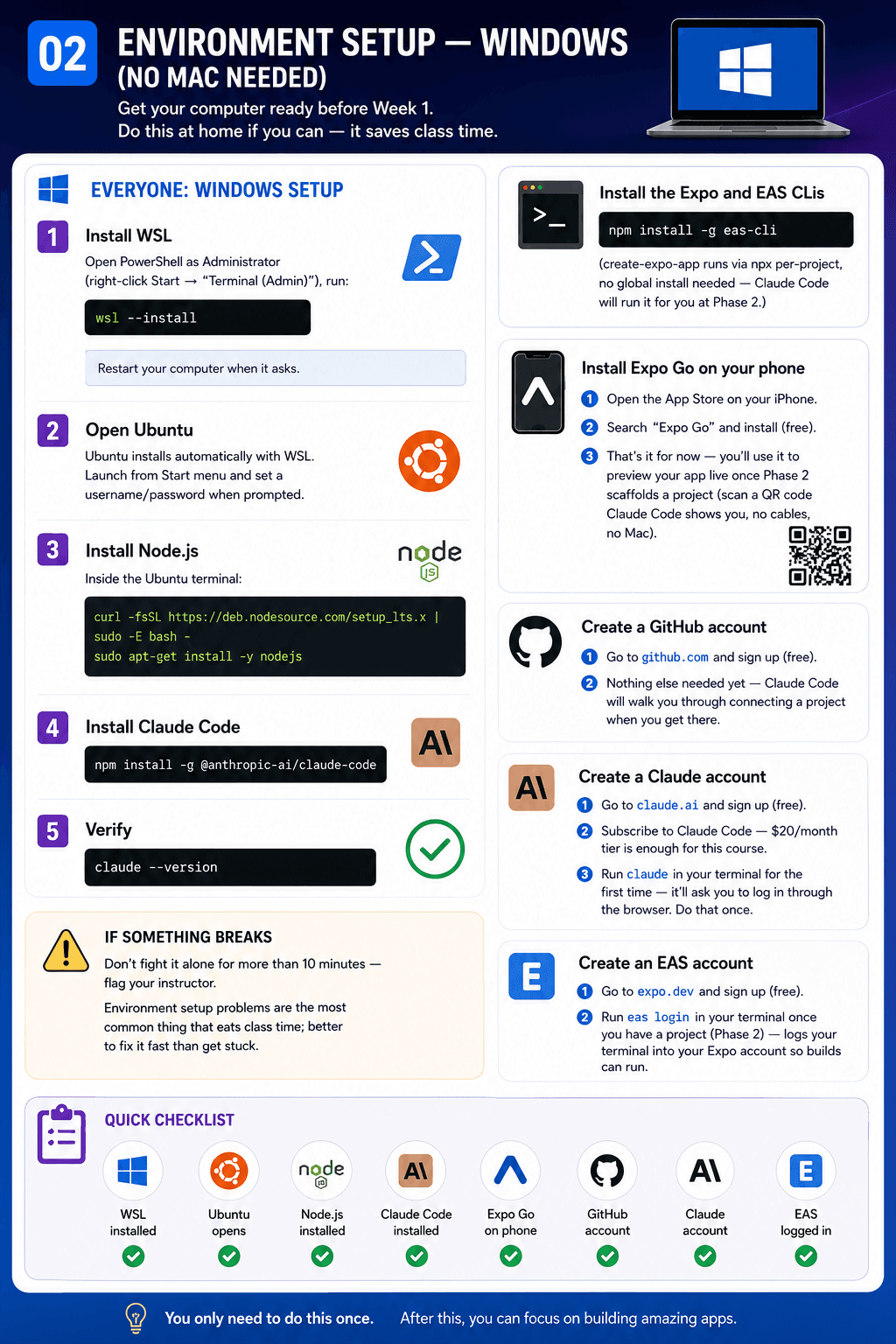
Environment Setup — Windows (no Mac needed)
Get your computer ready before Week 1. Do this at home if you can — it saves class time.
Everyone: Windows setup
- Install WSL (Windows Subsystem for Linux) — open PowerShell as Administrator (right-click Start → "Terminal (Admin)"), run:
Restart your computer when it asks.wsl --install - Open Ubuntu (installs automatically with WSL) from the Start menu, set a username/password when prompted.
- Install Node.js — inside the Ubuntu terminal:
curl -fsSL https://deb.nodesource.com/setup_lts.x | sudo -E bash - sudo apt-get install -y nodejs - Install Claude Code:
npm install -g @anthropic-ai/claude-code - Verify:
claude --version
Install the Expo and EAS CLIs
npm install -g eas-cli
(create-expo-app runs via npx per-project, no global install needed — Claude Code will run it for you at Phase 2.)
Install Expo Go on your phone
- Open the App Store on your iPhone, search "Expo Go", install (free).
- That's it for now — you'll use it to preview your app live once Phase 2 scaffolds a project (scan a QR code Claude Code shows you, no cables, no Mac).
Create a GitHub account
- Go to github.com, sign up (free).
- Nothing else needed yet — Claude Code will walk you through connecting a project when you get there.
Create a Claude account
- Go to claude.ai, sign up (free to create the account).
- Subscribe to Claude Code — $20/month tier is enough for this course.
- Run
claudein your terminal for the first time — it'll ask you to log in through the browser. Do that once.
Create an EAS account
- Go to expo.dev, sign up (free).
- Run
eas loginin your terminal once you have a project (Phase 2) — logs your terminal into your Expo account so builds can run.
If something breaks
Don't fight it alone for more than 10 minutes — flag your instructor. Environment setup problems are the most common thing that eats class time; better to fix it fast than get stuck.